
Assigning a Guest pass(es) you want control of
Complete the same steps above, but in name, write GUEST of -your first intital and last name. EXAMPLE : GUEST of H MILLER
Add a second email you own, and then Assign pass.
You can go in and magange the events/films for that pass and share it with your guest.


Assigning pass(es)
You will receive a confirmation
-
After selecting the "Assign this pass" button, a form will launch
- Enter the name, email, a short message.
- Select the "Assign pass" button

Where to find your pass
-
Navigate to "Passes" or "Schedule".
-
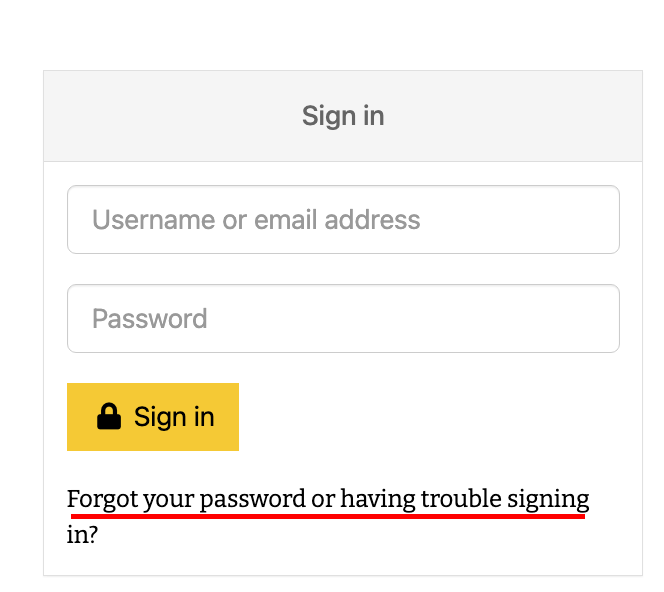
In the upper right-hand navigation, and "Sign in"
-
Use the email you used to purchase your pass and select " Forgot password".

Sign in
-
Select Sign in
-
Enter the email you used to purchase a pass with
(the one our passholder email comes to) -
Use the forgot password link, and set up a new password.
Locate Pass or tickets
-
Use the drop down under you name and navigate to My tickets

View pass(es)
-
You should now be able to see the pass(es) you have in your account
- If there are multiple passes, they will be right under your pass. Each pass must be assigned to a unique user .

